How I Launched my FREE AI App to Automate Social Media Posting Starting with a Clean Next.js Setup
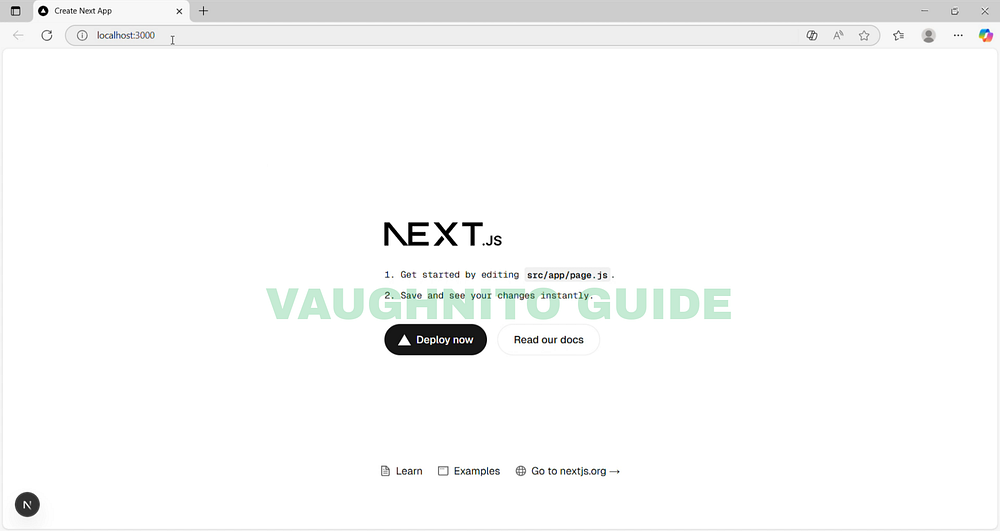 |
| Nxt.js Project running on local host. |
Hey everyone Vaughnito here! 👋
So this was the day I officially started building SosyalAi, my dream project.
I remember opening my laptop, sipping coffee, and thinking,
“Okay… let’s finally make this automation app real.”
If you read my first post here, you already know why I started this.
Social media automation tools are crazy expensive and I wanted to build one that’s free or costs next to nothing.
So let me walk you through exactly what I did that day when I first set up my SosyalAi project from scratch.
Get the full code after reading.
🧩 Step 1 - Checking if Node.js Was Installed
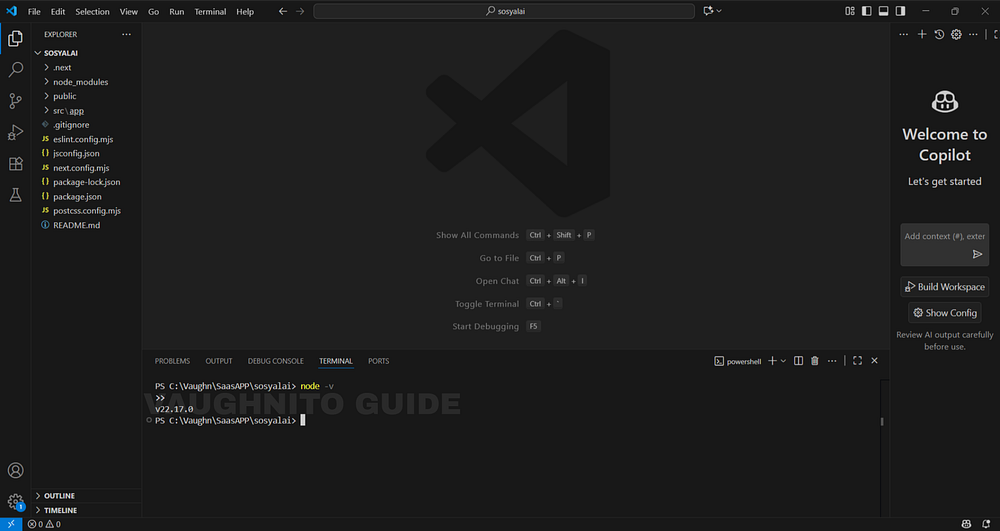 |
| Checking If Node.js Is Installed |
First thing I did was open my terminal in VS Code (you can also use PowerShell).
Just press:
Ctrl + `That’s the backtick key — usually beside the number 1 on your keyboard.
Then I typed this command:
node -vBoom 💥 It showed:
v22.17.0Nice. That means Node.js was already installed and working perfectly.
Just to be sure, I also checked npm (that’s Node’s package manager):
npm -vMine showed 10.8.2 — so everything was ready to go.
If yours doesn’t show a version, don’t panic just go to nodejs.org and install the LTS version first.
🧩 Step 2 - Creating My Next.js Project Folder
Next, I decided to create my actual project folder.
I went with the command:
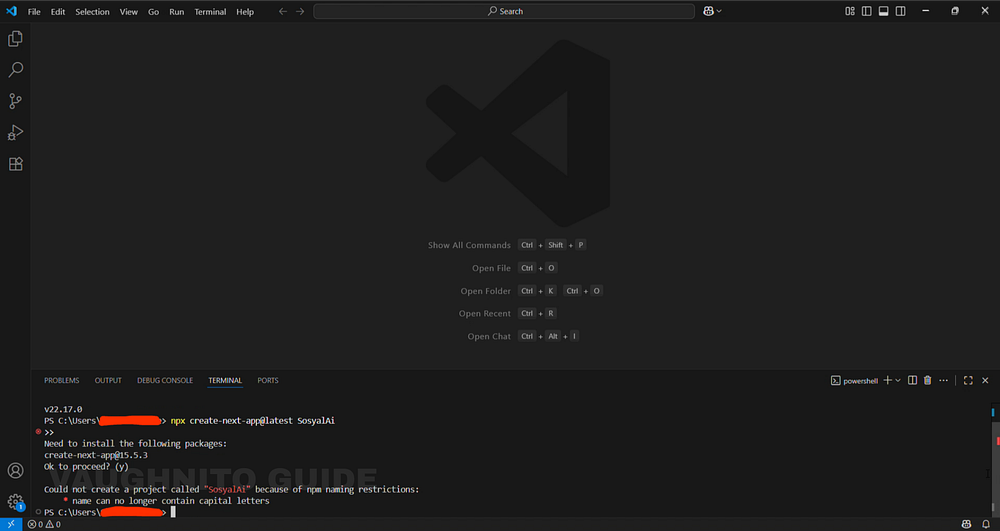 |
| Installing Project Package in Visual Studio Code |
npx create-next-app@latest SosyalAi…and then I hit Enter with full confidence 😎
But guess what happened?
It threw an error.
Apparently, npm doesn’t allow capital letters in project names.
So I was like, “Okay fine, let’s go lowercase.”
I ran it again:
npx create-next-app@latest sosyalaiAnd this time, it worked perfectly.
That command created a new folder with all the default Next.js files inside.
🧩️ Step 3 - The Setup Questions
Then came the fun part, those little interactive questions that pop up while installing the project.
Here’s how it went down:
? Would you like to use TypeScript? » NoI picked No because I wanted to keep it simple for now (I can always add it later).
Then it asked:
? Which linter would you like to use? » ESLintI chose ESLint, because it helps catch errors automatically.
Next question:
? Would you like to use Tailwind CSS? » YesOf course! Tailwind is a must-have for me — super fast for styling.
Then:
? Would you like your code inside a src/ directory? » NoNope, I prefer it clean and simple.
Finally:
? Would you like to use App Router? (recommended) » YesDefinitely Yes — App Router is the future of Next.js.
So with all those answered, the setup started installing everything automatically. I just watched the terminal do its thing.
🧩️ Step 4 — Running My Project for the First Time
After the installation finished, I opened my new folder:
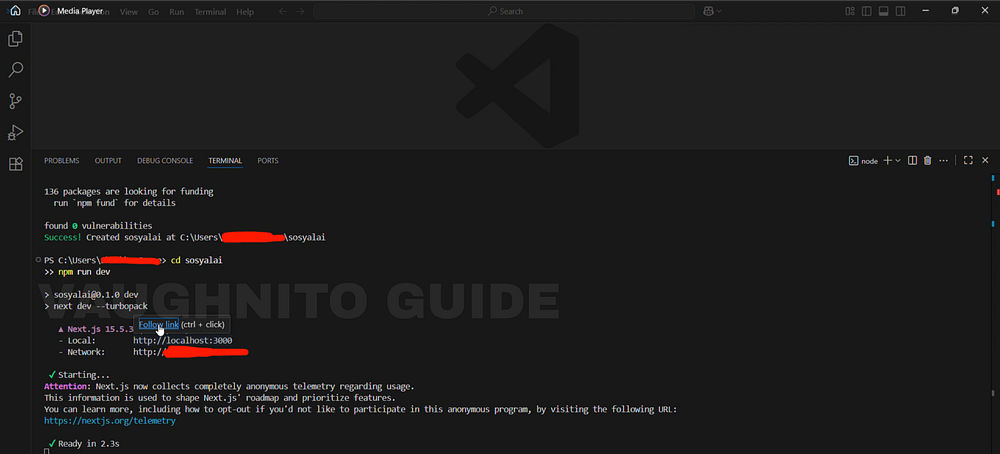 |
| Running Next.js Project in Visual Studio Code |
cd sosyalaiThen I ran the command:
npm run devIt started compiling, and after a few seconds, it said:
Local: http://localhost:3000I copied that URL, opened my browser, and there it was my brand new Next.js app running perfectly on port 3000.
|
| Opening Next.js Project in Local Host |
Man, it looked beautiful because it meant SosyalAi officially existed.
I won’t lie, it felt good seeing it work.
From an empty folder to a live local app in under 5 minutes.
And even though it’s just the starter template for now, that was the first real step toward turning SosyalAi into a full-blown automation tool.
🧭 What’s Next
In Page 3, I’ll share how I designed the homepage vision for SosyalAi using Next.js transforming initial ideas into a clear visual direction. This is where creativity met structure: planning the layout, defining the core sections, and shaping the user flow that would later guide the app’s functionality. It’s the foundation of how I started bringing my concept for a FREE AI App to automate social media posting into a real, working homepage prototype.If this resonates with you:
- 👏 Clap for this article.
- 💬 Share your automation frustrations in the comments.
- 🔗 Pass this to a friend who’s tired of expensive SaaS bills.
- ❤️ Follow me for the SosyalAi coding journey.
☕ If you’d like to support my work, you can buy me a coffee, I’ll keep turning caffeine into code!
👉 And if you want the full working code snippets I’ll be sharing, check my website.
Before you go, if this story inspired you to start your own build, you might also enjoy:
💌 Click the email icon at the bottom of this story to subscribe and get notified when I release new coding topics, tutorials, and behind-the-code stories.
Comments
Post a Comment