Page7 - How I Connected My FREE AI App to Social Media: Adding Social Links to SosyalAi's Landing Page
Here’s how I made my FREE AI APP homepage instantly link to my social media channels with just a few lines of Next.js magic.
There’s a special kind of satisfaction that comes when you click that glowing YouTube icon and it actually works. You know what I mean that small, thrilling moment when you realize your personal project isn’t just “on localhost” anymore. It’s alive. It’s connected to the world.
Get the full code after reading.
When I built SosyalAi’s homepage, I wanted that exact feeling. I didn’t just want a static landing page; I wanted a digital handshake a way for visitors to instantly find me on YouTube, TikTok, and Instagram. After all, SosyalAi is about empowering creators and small business owners to automate their social posting. So, it only makes sense that my own homepage should live and breathe social connectivity.
The Vision: Making the Page Feel Alive
Let’s be honest, a landing page without social links is like a mall without exits. People come in, explore, but have nowhere else to go. I wanted SosyalAi’s homepage to feel like a hub interactive, responsive, and globally connected.
My goal?
- Add clickable, glowing social media icons that instantly direct users to my platforms.
- Make them responsive, adapting beautifully on both desktop and mobile.
- Design subtle hover effects that add a layer of motion not too flashy, just enough to catch your eye.
That’s when I pulled in one of my favorite tools in Next.js, the <Image> component.
Step 1: Importing and Structuring the Icons
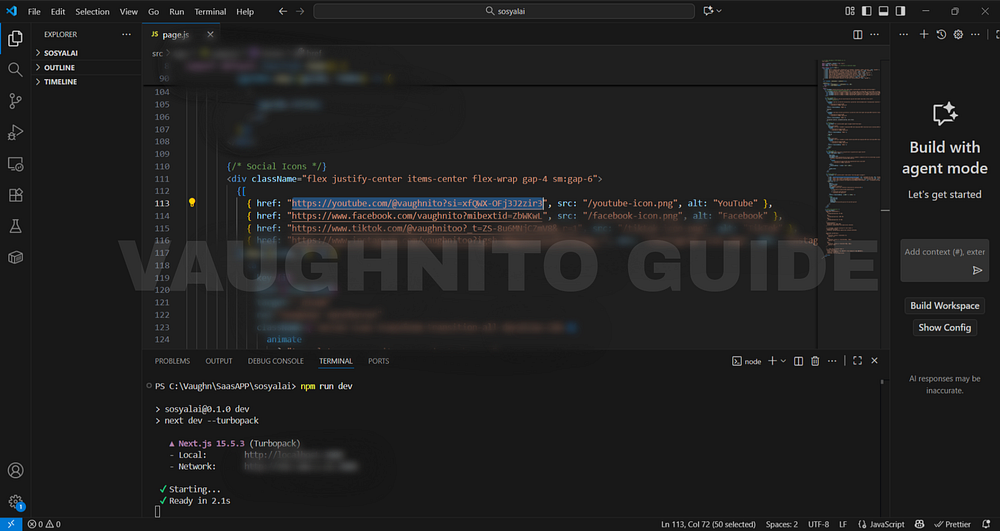
I started with the basics. Using Next.js’s built-in <Image> component, I imported my social icons into the SocialLinks section of my homepage.
Here’s the setup:
"use client";
import Image from "next/image";
import Link from "next/link";

export default function SocialLinks() {
  const socials = [
    { name: "YouTube", icon: "/icons/youtube.png", link: "https://youtube.com/@vaughnspodcast" },
    { name: "TikTok", icon: "/icons/tiktok.png", link: "https://tiktok.com/@vaughnito" },
    { name: "Instagram", icon: "/icons/instagram.png", link: "https://instagram.com/vaughnito" },
  ];

  return (
    <div className="flex gap-6 justify-center items-center mt-8">
      {socials.map((item, index) => (
        <Link key={index} href={item.link} target="_blank">
          <Image
            src={item.icon}
            alt={item.name}
            width={48}
            height={48}
            className="transition-transform duration-300 hover:scale-110 hover:brightness-125"
          />
        </Link>
      ))}
    </div>
  );
} |
| Next.js landing page showing clickable icons that lead to YouTube, TikTok, and other creator platforms. |
When I first saw these icons pop up, I won’t lie I stared for a good minute. Seeing those familiar logos in my own interface gave me the kind of developer high that’s hard to explain. It felt like my app had taken its first breath.
Step 2: Adding Glow Effects & Energy
Flat icons? Too static. SosyalAi’s design language is movement every element should feel alive, like it’s pulsing with purpose.
So, I wrapped the icons in Tailwind CSS classes that add a glowing hover effect. Something subtle, yet visually appealing:
.hover-glow {
  filter: drop-shadow(0 0 8px rgba(255, 255, 255, 0.4));
}
And in my component:
className="transition-all hover:scale-110 hover-glow"Now, when you hover over an icon, it gives off this soft radiance like it’s saying,
Hey, come connect with me.
It’s amazing how something so simple can make your site feel more human.
Step 3: Making It Responsive (Because Mobile Matters)
If there’s one thing I’ve learned, it’s this: if your design doesn’t work on mobile, it doesn’t work.
So I adjusted the layout using Tailwind’s responsive utilities:
<div className="flex flex-wrap justify-center gap-4 sm:gap-6 md:gap-8">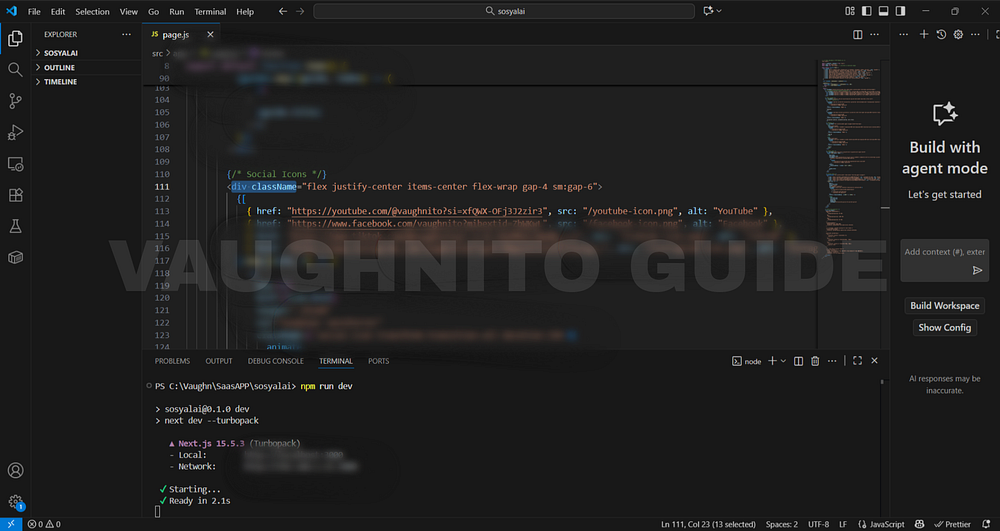 |
| Next.js landing page displaying SosyalAi social media icons with hover glow and responsive design. |
That single line ensured my icons look perfectly spaced whether you’re on a phone, tablet, or wide monitor. It’s the little details that make your build feel professional.
Why map() Over Hardcoding?
I see beginners sometimes hardcoding every single <Image> link and I get it, it feels simpler at first. But when you’re maintaining multiple links, that becomes a nightmare.
Using .map() is cleaner, scalable, and future-proof.
Here’s why:
- You can add or remove social links easily without touching the markup.
- Keeps your code DRY (Don’t Repeat Yourself).
- Future-ready, imagine integrating an admin panel later to dynamically fetch social links from your CMS.
By mapping an array, you’re basically saying: “I’m coding for tomorrow, not just today.”
Bringing Personality into the Page
Now let’s get a bit personal. When I placed those icons, it wasn’t just about “UI polish.” It was a statement.
I wanted new visitors to instantly know,
Hey, this guy’s real.
He’s building an app, documenting the journey, and showing up across multiple platforms.
Because let’s be real, people connect with people, not products. And if SosyalAi is about empowering creators to automate their social media, then it’s only fair that my own homepage shows I’m walking that talk.
The Bigger Picture: SEO & AEO Connection
Adding clickable links to your verified social profiles doesn’t just boost aesthetics it boosts trust and ranking.
Here’s how:
- Search engines verify credibility when they see consistent brand links across domains.
- Internal and external linking improves retention and authority signals.
- Answer Engine Optimization (AEO) helps your content surface in AI-driven searches like ChatGPT or Google’s AI Overviews.
So yes those little icons are doing a lot more than just looking good.
Quick Recap (for the TL;DR folks)
If you’re planning to integrate social links into your Next.js project:
- Use
<Image>for optimized loading and responsive rendering. - Keep your icons in an array and render them dynamically with
.map(). - Add hover glows to bring life and personality.
- Prioritize mobile-first responsiveness.
- Always link to verified and consistent handles for credibility.
Small steps, massive impact.
When I hit refresh and saw those glowing icons line up perfectly, I felt a quiet joy like planting flags across my little corner of the internet.
It reminded me why I started SosyalAi in the first place to create something that connects people, empowers creators, and saves time through automation.
So the next time you see those icons glowing softly on the homepage, know that they represent more than links they’re little gateways to the creative universe I’m building.
If you want to copy my full working SosyalAi homepage code, visit my official website, everything’s there, ready to fork, modify, and make your own project shine.
And if this story resonated with you:
- 💬 Leave me a comment - I’d love to hear what you’re building!
- 🔄 Restack it with your fellow developers or creators.
- ☕ If you want to support my work, buy me a coffee, it keeps me fueled to write more guides like this.
Because building apps is fun. But building with a community? That’s magic.
🧭 What’s Next
In Page 7, I’ll show you how I cleaned up that default Next.js homepage, customized it, and started shaping it into the SosyalAi interface I had in mind.Before you go, if this story inspired you to start your own build, you might also enjoy:
💌 Click the email icon at the bottom of this story to subscribe and get notified when I release new coding topics, tutorials, and behind-the-code stories.
Comments
Post a Comment